
Issuing your first invoice
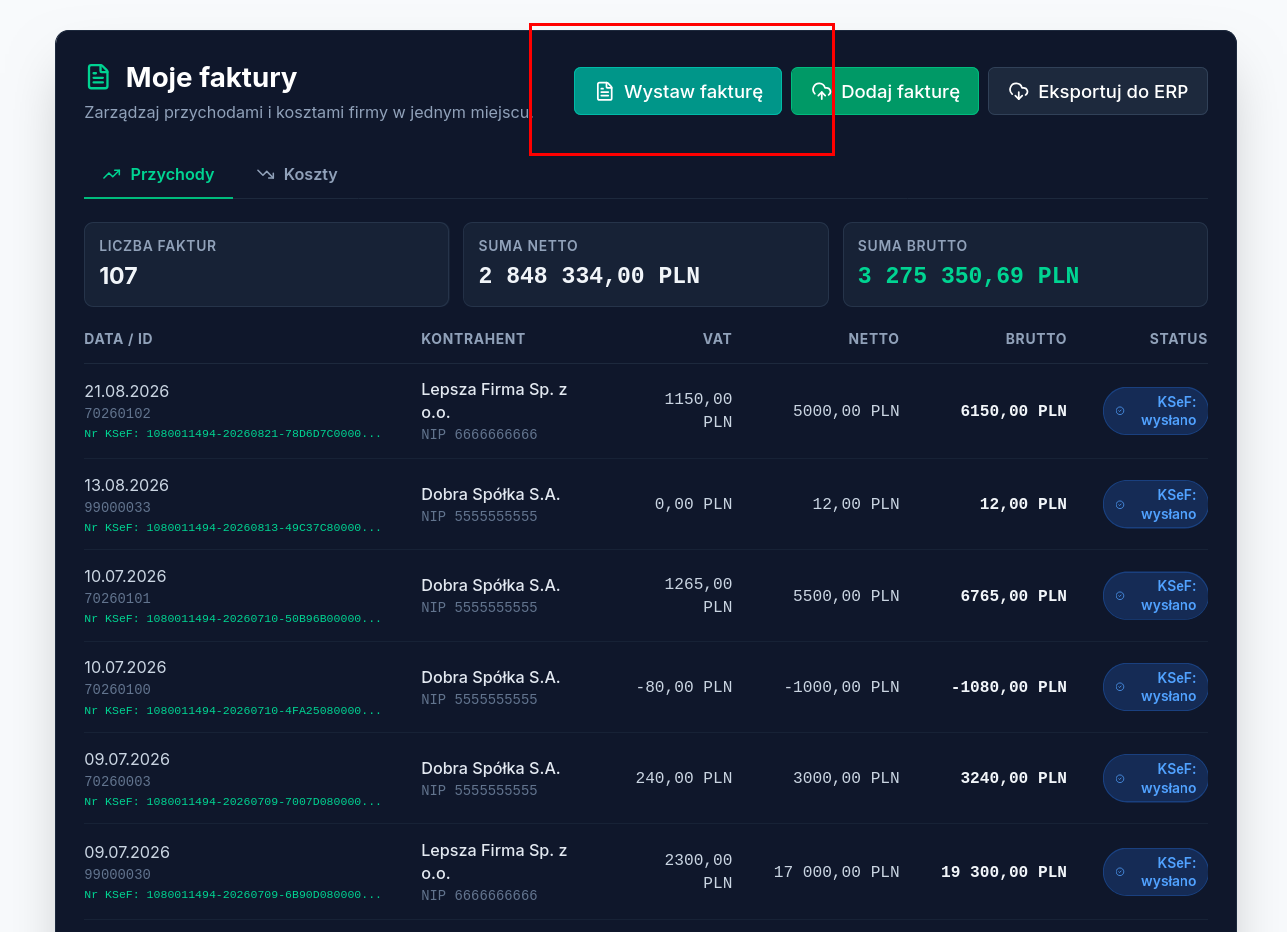
An invoice is issued with the Issue invoice button in the My invoices view. This article describes which fields need to be filled in by hand and which Atestio fills in automatically.
Fields filled in by hand
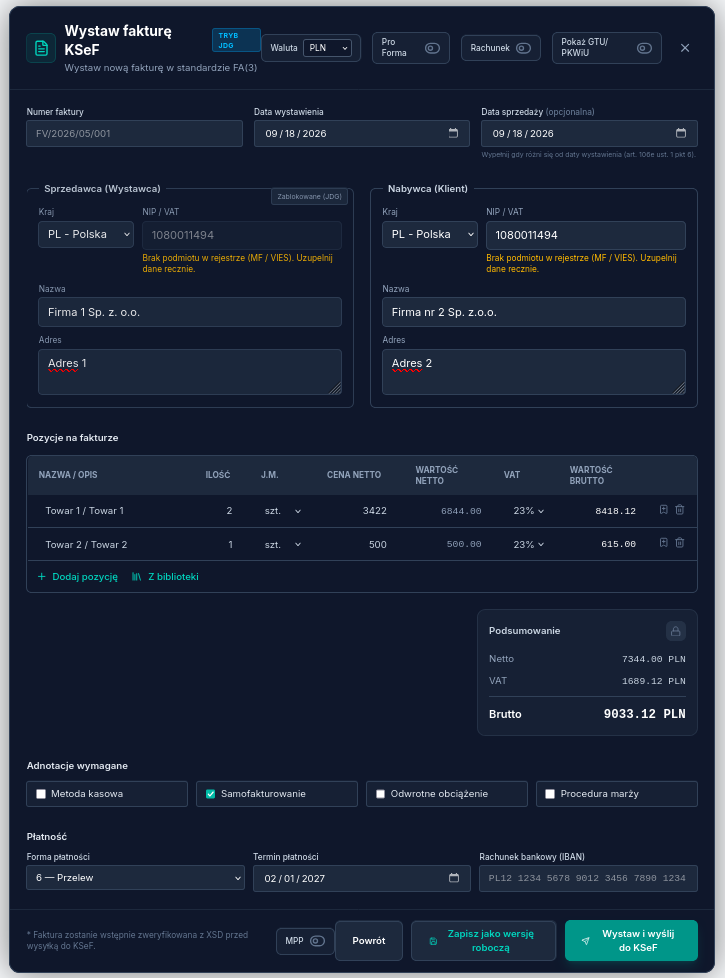
Section titled “Fields filled in by hand”- The counterparty — the NIP alone is enough; Atestio pulls the business’s details from the registry. If the entity can’t be found in the registry (Ministry of Finance / VIES), the seller’s and buyer’s details need to be entered by hand.
- Line items — name, quantity, unit price, and VAT rate.
- Payment due date — either a number of days or a specific date.
- Required annotations, if they apply to the transaction — cash method, self-billing, reverse charge, or the margin scheme.
What Atestio fills in automatically
Section titled “What Atestio fills in automatically”- Invoice number — following the numbering scheme you set.
- Issue date and sale date.
- Net, VAT, and gross amounts, with a summary for each rate.
- Seller’s details from your business settings.
What happens after issuing
Section titled “What happens after issuing”- Atestio saves the invoice and assigns it a number.
- The document is sent to KSeF.
- Once accepted, KSeF assigns it a KSeF number, visible on the invoice card.
- The document can be downloaded as a PDF or sent to the counterparty electronically.
The KSeF number usually appears within a few seconds. If it doesn’t appear within a few minutes, check the status on the document’s card.
Invoices outside KSeF
Section titled “Invoices outside KSeF”Some documents don’t go to KSeF — for example, receipts (rachunki) issued by VAT-exempt entities. Atestio recognizes these cases and marks the document as issued outside KSeF, without attempting to send it.
What’s next
Section titled “What’s next”Was this article helpful?
Thank you.
Thank you. Other articles on this topic may help; if you still can’t find an answer, contact us: pomoc@atestio.pl.