
Two-factor verification (2FA)
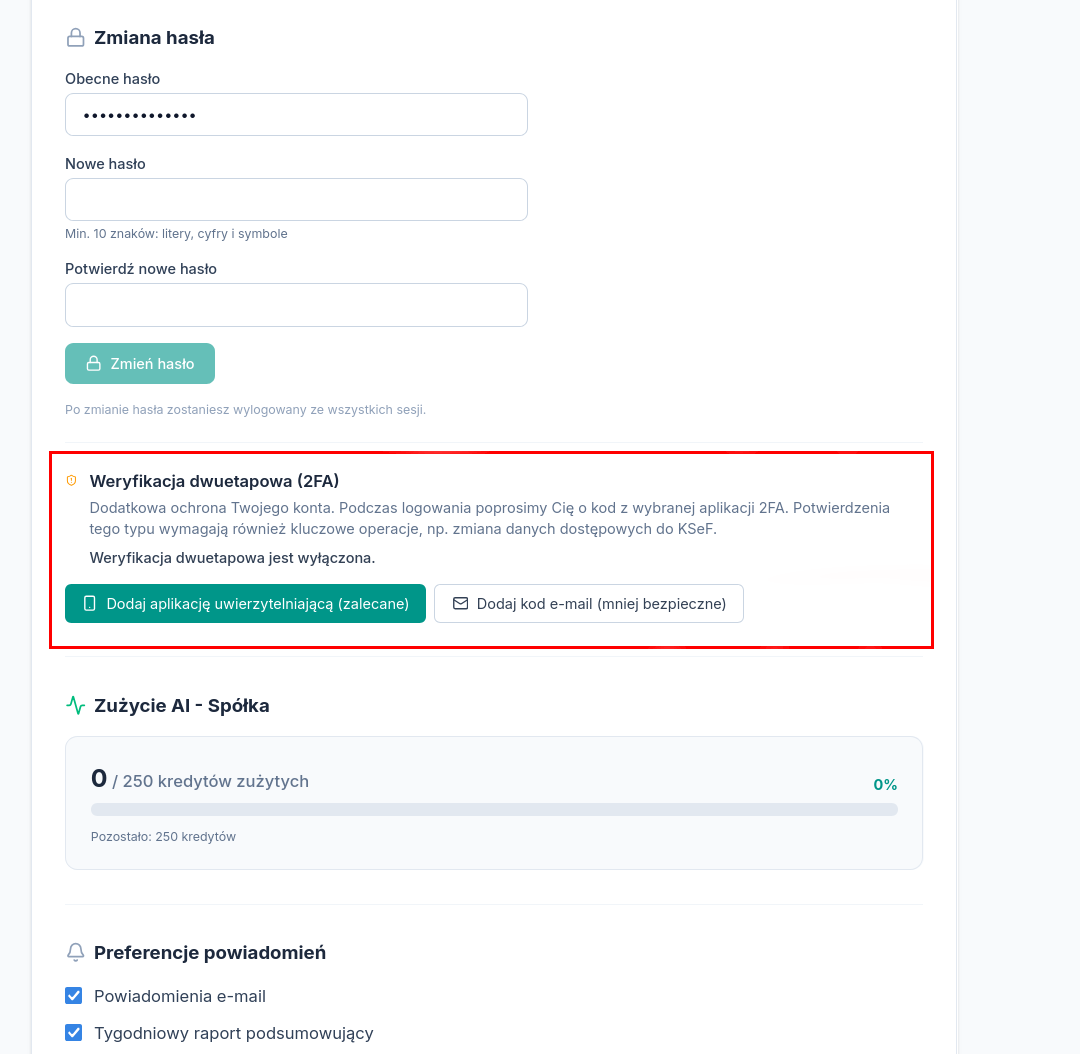
Two-factor verification is extra protection for your account: once turned on, signing in and sensitive operations (e.g. changing KSeF access details) require — besides the password — a code from a second factor.
Available methods
Section titled “Available methods”| Method | Description |
|---|---|
| Authenticator app (TOTP) | Google Authenticator, Microsoft Authenticator, Authy, and similar — a 6-digit code that changes every 30 seconds. Recommended as the primary method. |
| Email code | A one-time code sent to the account’s email address. A backup factor with a lower security class, since it uses the same channel as password recovery. |
| Backup codes | A set of one-time codes generated when 2FA is turned on, for use when the primary method is unavailable (e.g. a lost phone). |
How to turn on 2FA
Section titled “How to turn on 2FA”- Open Settings → General → Two-factor verification.
- Choose a method: an authenticator app or an email code.
- For an authenticator app — scan the QR code or enter the key by hand, then confirm with the 6-digit code from the app.
- Save the backup codes shown. They’re visible only at this moment — Atestio doesn’t store them in a form that can be shown again.
Backup codes
Section titled “Backup codes”Each backup code works once. Once they’re used up, the 2FA panel offers the option to generate a new set — the previous one then becomes invalid.
Turning off 2FA
Section titled “Turning off 2FA”Turning it off requires confirming with the current password or an active factor.
What’s next
Section titled “What’s next”Was this article helpful?
Thank you.
Thank you. Other articles on this topic may help; if you still can’t find an answer, contact us: pomoc@atestio.pl.