
Ways to connect to KSeF
Which connection methods are available?
Section titled “Which connection methods are available?”A KSeF token, an authentication certificate, and Profil Zaufany. Accounting firm accounts can also authenticate with a qualified electronic seal. You choose a method during account setup — unavailable options are hidden, so only the ones you can actually use are shown.
Token or certificate?
Section titled “Token or certificate?”A token is the simplest to set up and has no fixed expiry date. The Ministry of Finance has announced a future move to mandatory certificate authentication, but the implementing regulation hasn’t been passed yet, so the announcement isn’t binding for now. Atestio supports both methods, and you can switch to a certificate at any time without losing data.
Setting up a token
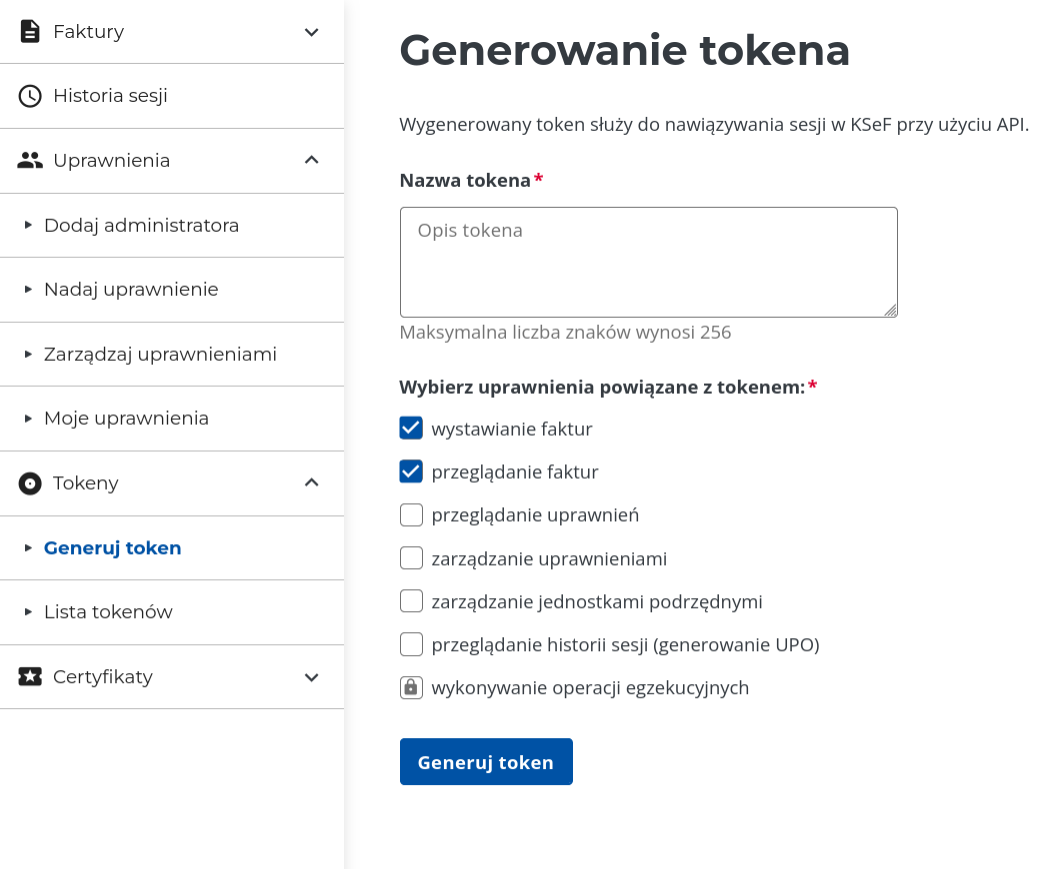
Section titled “Setting up a token”A KSeF token is generated in the KSeF Portal, specifying the scope of permissions it should cover (at minimum, issuing and viewing invoices):
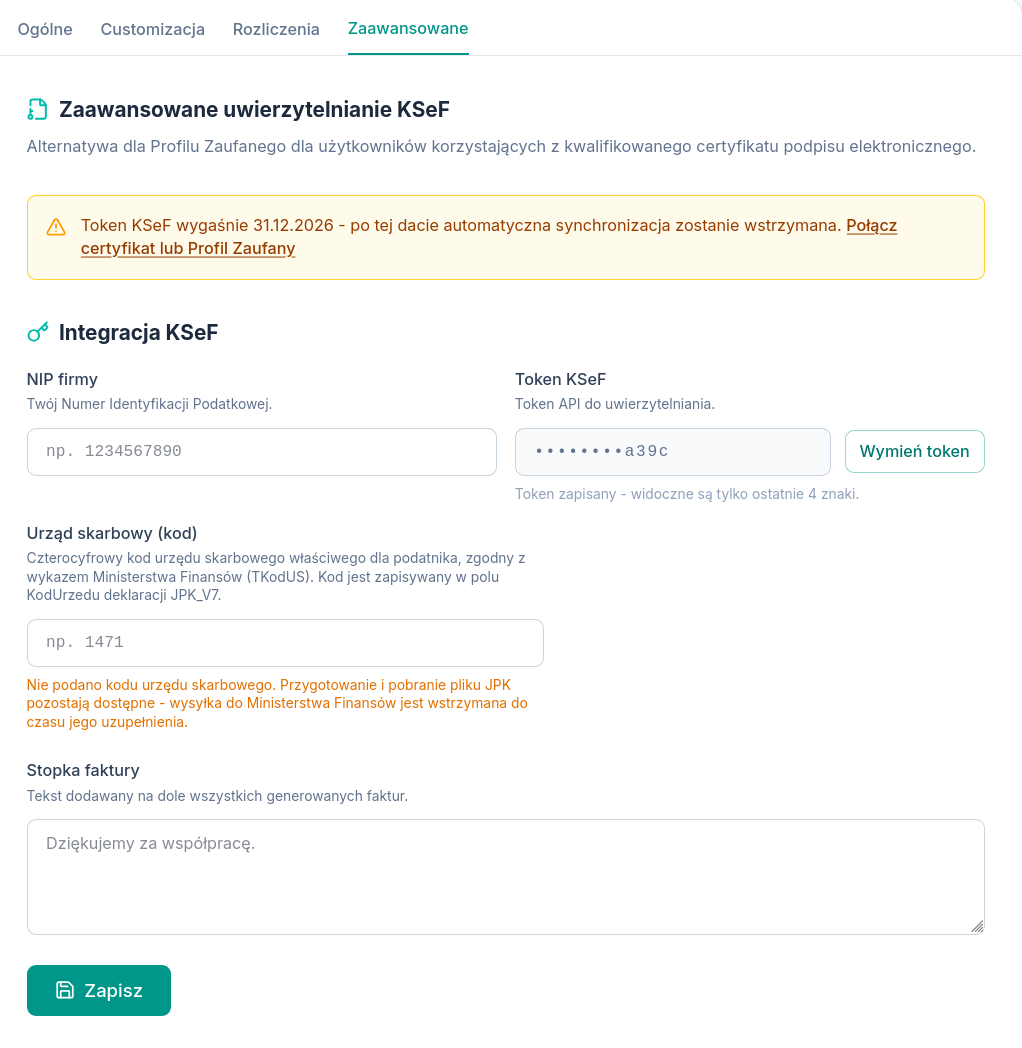
The generated token is pasted into Atestio, under Settings → Advanced → KSeF integration:
Setting up a certificate
Section titled “Setting up a certificate”A KSeF certificate is a pair of files issued for the taxpayer’s NIP: a
certificate file (.crt) and an encrypted private key (.key, PKCS#8
format).
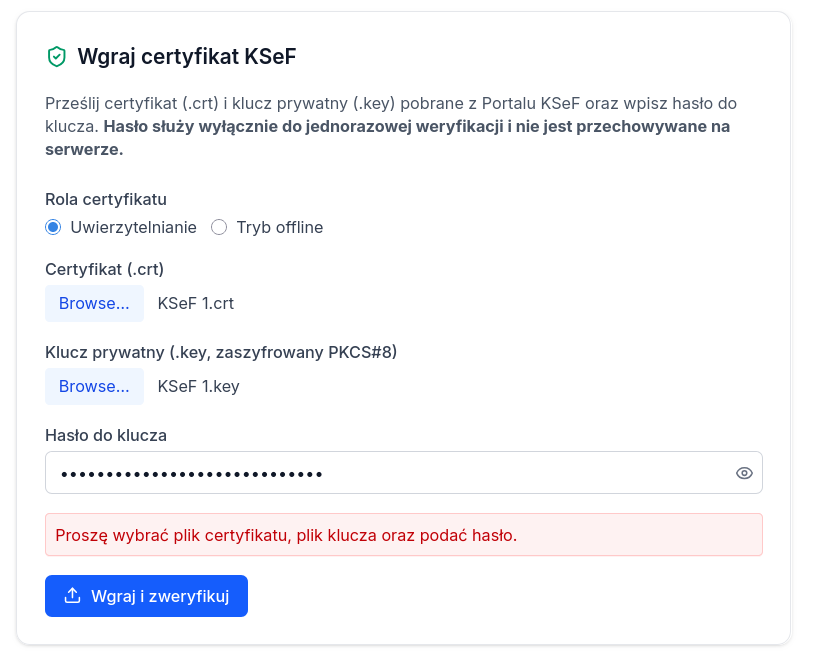
- Open Settings → Advanced → Advanced KSeF authentication.
- Upload the
.crtfile and the.keyfile downloaded from the KSeF Portal. - Enter the key’s passphrase — the same one set when the key was generated in the KSeF Portal. The passphrase is used only once, to verify the key on upload, and is never stored on the server.
- Choose the certificate’s role: authentication or offline mode.
- Select Upload and verify.
Once verified, the certificate appears in the list with a status:
| Status | Meaning |
|---|---|
| Unverified | Uploaded, verification not yet confirmed. |
| Verified | Active — can authenticate the KSeF connection. |
| Revoked | Withdrawn — can no longer be used to authenticate. |
Switching back to Profil Zaufany
Section titled “Switching back to Profil Zaufany”An account that connected with a certificate or a seal can switch back to signing in with Profil Zaufany at any time, under Settings → Advanced. Saved certificates aren’t deleted — the next sign-in will simply default to Profil Zaufany.
Couldn’t find an answer?
Section titled “Couldn’t find an answer?”You can reach us at pomoc@atestio.pl — we reply on business days.
Was this article helpful?
Thank you.
Thank you. Other articles on this topic may help; if you still can’t find an answer, contact us: pomoc@atestio.pl.